
THE DIGITAL WORLD
Truth & Safety
7 Smartphone Settings You Should Check Today for Safety and Privacy
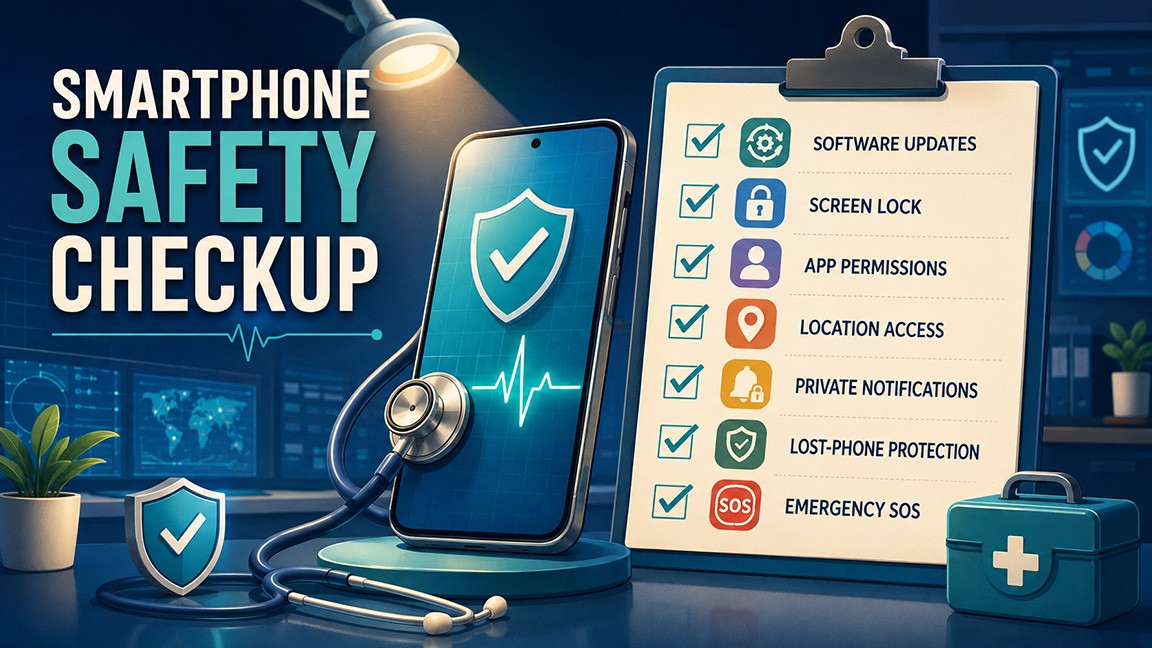
Your smartphone probably contains more personal information than anything else you own. It may hold your photographs, emails, text messages, banking information, medical details, passwords, contacts, and a record of where you have been.
Fortunately, you do not need to be a technology expert to make your phone safer. A few carefully chosen settings can improve your privacy, protect your accounts, and prepare your phone for an emergency.
Menu names can vary depending on your phone model and software version. If you cannot locate a setting, use the search box at the top of the Settings app.
1. Install Software and Security UpdatesIt is tempting to postpone an update, especially when your phone appears to be working perfectly. However, updates do more than introduce new features or change the appearance of your screen. They frequently repair security weaknesses that criminals could use to access a device.
On an iPhone, open Settings, select General, and then choose Software Update. You can also open Automatic Updates and allow the phone to download and install future updates automatically.
On an Android phone, open Settings, choose System, and then select Software Update or System Update. The exact wording may differ by manufacturer. Android users can also check the date of their Android security update and Google Play system update under About Phone and Android Version. Google recommends checking both operating-system and security-update information.
Before installing a major update, connect the phone to Wi-Fi, make sure the battery is sufficiently charged, and confirm that important information has been backed up.
2. Strengthen Your Screen LockA screen lock is the first barrier between your personal information and someone holding your phone. Avoid using an easily guessed code such as 1234, 0000, your birth year, or the last four digits of your telephone number.
A six-digit PIN is considerably harder to guess than a four-digit PIN. A longer alphanumeric password offers even greater protection. Face recognition and fingerprint identification are also convenient, but they should be supported by a strong passcode.
On an iPhone, go to Settings and select Face ID & Passcode or Touch ID & Passcode. On Android, look under Settings, Security & Privacy, and Device Unlock or Screen Lock.
iPhone users should also check Stolen Device Protection under Face ID & Passcode. This feature can require Face ID or Touch ID—and, for certain sensitive changes, a security delay—when someone attempts to alter important account settings. It is designed to protect you even if a thief has seen or discovered your passcode. Apple explains how Stolen Device Protection works.
Finally, shorten the time before your phone locks automatically. One or two minutes is safer than leaving an unattended phone unlocked for an extended period.
3. Review App PermissionsApplications often request access to the camera, microphone, contacts, photographs, or location. Some permissions are necessary. A navigation app needs your location to provide directions, and a video-calling app needs the camera and microphone. Other requests may have little connection to what an app actually does.
On an iPhone, open Settings, select Privacy & Security, and review categories such as Location Services, Contacts, Photos, Microphone, and Camera.
On Android, go to Settings, choose Security & Privacy or Privacy, and open Permission Manager or Privacy Dashboard. The Privacy Dashboard can show which applications recently accessed sensitive features. Google provides instructions for reviewing Android's Privacy Dashboard.
Ask one simple question: Does this application truly need this information to perform its job? If the answer is no, remove the permission. For photographs, consider allowing access only to the specific images you choose rather than your entire library.
Removing a permission does not usually delete the application. If an important feature stops working, you can restore the permission later.
4. Limit Location AccessLocation services make weather reports, navigation, ride-sharing, and emergency features possible. However, an application does not necessarily need to know where you are all day.
Review every application with location access. Whenever possible, choose While Using the App instead of Always. Select Never for applications that have no legitimate reason to track your location.
On an iPhone, open Settings, Privacy & Security, and Location Services. Apple allows you to manage location access separately for each application and, in many cases, turn off Precise Location. Apple's Location Services guide describes these controls.
On Android, open Settings, Location, and App Location Permissions. Depending on the application and phone, you may be able to choose an approximate location rather than your precise position.
Do not simply turn off all location services. Doing so could interfere with maps, weather alerts, lost-phone recovery, and emergency functions. The goal is to give location access only where it provides a clear benefit.
5. Hide Sensitive Notifications on the Lock ScreenA locked phone can still reveal private information if incoming messages appear on the screen. A verification code, bank alert, medical reminder, email preview, or personal text could be visible without anyone unlocking the device.
On an iPhone, go to Settings, select Notifications, and choose Show Previews. Selecting When Unlocked allows you to see previews after Face ID, Touch ID, or your passcode confirms your identity.
On Android, open Settings, select Notifications, and look for Notifications on Lock Screen or Sensitive Notifications. You can hide sensitive content while continuing to receive an alert that a notification has arrived.
You do not have to hide everything. Calendar reminders or weather alerts may be harmless, while banking, email, messaging, and authentication apps deserve greater privacy. Review these applications individually and decide what you would be comfortable allowing a stranger to see.
6. Turn On Lost-Phone ProtectionLost-phone services work best when they are activated before the phone disappears.
On an iPhone, open Settings, tap your name, select Find My, and make sure Find My iPhone is enabled. Features such as the Find My network and sending the phone's last location can help when the device is offline or running low on power.
On Android, search Settings for Find Hub and make sure Allow Device to Be Located is turned on. Google's Find Hub can help you ring, locate, secure, or erase a missing Android device. It may also use encrypted location information to help locate compatible offline devices. Google explains how to prepare an Android phone for Find Hub.
Make sure you know the username and password for your Apple or Google account. If possible, store recovery information somewhere secure that you can access without the missing phone.
A family member should not automatically be given your account password. Instead, discuss where recovery instructions are stored and whom you trust to help during an emergency.
7. Set Up Emergency SOS and Medical InformationYour phone can help emergency responders and trusted contacts, but only if you complete the setup in advance.
On an iPhone, open the Health app, tap your profile picture, and select Medical ID. Add information that could be important in an emergency, such as allergies, medical conditions, medications, blood type, and emergency contacts. Decide whether your Medical ID should be accessible while the phone is locked. Review Emergency SOS under Settings so you understand how to activate it.
On many Android phones, open the Safety app or look under Settings, Safety & Emergency. Add emergency contacts and relevant medical information. Compatible Android phones may also offer Emergency SOS, emergency location sharing, crisis alerts, and safety checks. Google's emergency-features guide explains the available options.
Only include information that would be genuinely helpful during an emergency. Review it whenever your medications, medical conditions, or emergency contacts change.
A Safer Phone in Less Than an HourSmartphone safety is not about turning off every feature or becoming suspicious of technology. It is about deciding who can access your information, what your applications are allowed to do, and how your phone should respond when something goes wrong.
Take these settings one at a time. Update the phone, strengthen the lock, review permissions, limit unnecessary location access, protect your notifications, activate lost-phone tools, and complete your emergency information.
A few minutes spent checking these settings today could protect your privacy, your accounts, and even your safety tomorrow.
